
1d - Writing up a message
Writing up a message
The Message Express interface is designed to let you quickly draft a text to be sent by email, SMS and phone using a synthetic voice. Simply type a subject and a message in the appropriate fields.

When text is entered in the subject and message fields, two things happen. First, a counter in the lower left corner indicates how many characters can be added to the message. This number must be taken into account so that the limit for a message is not exceeded.

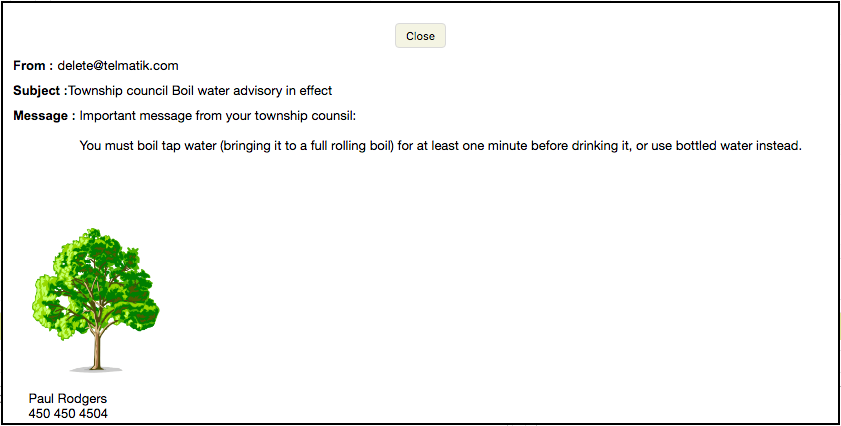
Then two buttons appear. The first button, an at sign (@), allows you to see what the email version of your message will look like, i.e. the text you have entered, together with all the elements present in the email template of the category you have chosen, such as the signature, logo, paragraph, etc.
The second, a listening button can be used to play the vocal version of the message. Since your message will be read by a synthetic voice, you may want to test its clarity. It includes the elements of the template in use (according to the chosen category). Also, you can choose a voice.

Here are some tips to ensure that your message is read correctly. Use verbs in the present tense, short sentences (subject, verb, complement), no inversion, and appropriate and varied punctuation to facilitate understanding. If necessary, see our Writing Tips section…
Satisfied with your message? You can now decide how you want to send it…